

Bursars, finance officers and authorised approvers
Fees & finance
Before you start: Confirm the active term, fee structures, currencies and approval responsibilities. Use the finance module’s detailed records for reconciliation.
Open Fees & financeActions depend on your school’s enabled modules, your permissions and the record’s current status.
Find your way around
Dashboard · Invoices · Receipts · Billing runs · Structures · Plans · Credits & refunds · Statements · Reminders · Reports · Controls. Select these tabs inside the module; scroll the tab row sideways on a phone.
1. Set fee structures and generate billing
- Open Structures and create or review charges for the relevant year, grade or term.
- Check currency, amount and applicability before saving.
- Open Billing runs and create the run for the intended cohort and term.
- Review the run and its proposed billing, then use the available generate or post action.
- Open Invoices and verify a sample of learners, charges and due dates.
What to check: The intended learners have invoices. Investigate exceptions before repeating a billing run.
2. Create and review an individual invoice
- Open Invoices and choose the create-invoice action.
- Select the learner, term and currency; add the charge lines and due date.
- Review totals and save the invoice.
- Open the invoice detail to check status, allocations and any available download.
- Confirm it appears in the learner’s fees record.
What to check: The invoice has the expected debtor, charges and balance.
3. Capture and allocate a payment
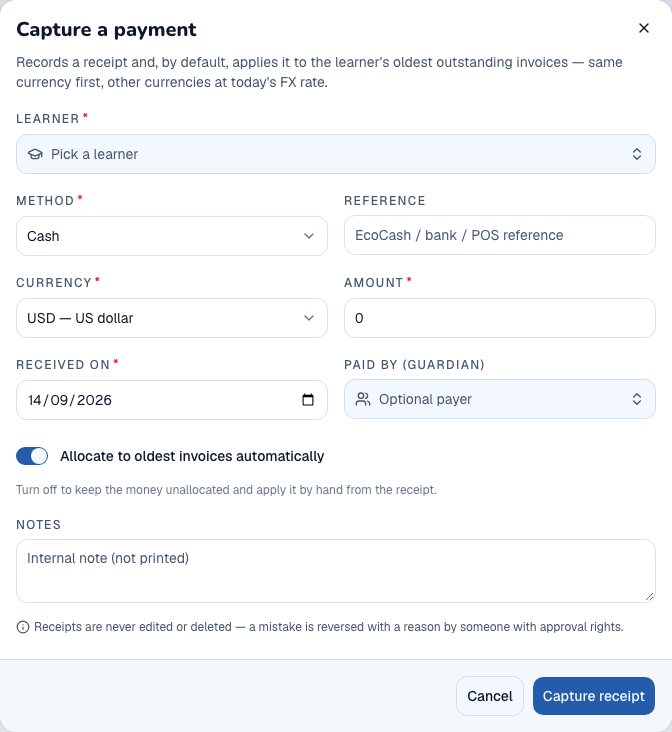
- Select Capture a payment.
- Choose the learner and enter the receipt amount, currency, date, method and reference.
- Review invoice allocations and any exchange-rate information required for a different currency.
- Save the receipt, then open Receipts and the affected invoice.
- Check the allocated amount, remaining invoice balance and any unallocated receipt amount.
What to check: A recorded receipt reduces invoice balances only through its allocations. A captured payment is not proof that an external bank transfer settled.
4. Handle a credit, refund or reversal
- Open Credits & refunds or the relevant receipt/invoice detail.
- Choose the permitted correction action and identify the original transaction.
- Enter the amount, currency and a clear reason; verify the effect before confirming.
- Complete any approval required by the screen.
- Review the corrected balance and transaction history instead of recording an unrelated negative payment.
What to check: The correction is linked to its original record and the reason is traceable.
5. Arrange a payment plan and reminders
- Open Plans and create a plan for the learner’s balance.
- Enter instalment dates and amounts, then review and save.
- Open Reminders to identify the intended overdue audience.
- Preview the reminder information and confirm sending only under the school’s communications process.
- Check the plan’s progress and delivery outcome, not just the initial confirmation.
What to check: The agreement is recorded and reminders target the intended families.
6. Reconcile statements, reports and controls
- Open Statements, choose the learner and date range, and review charges, receipts and closing balance.
- Use Reports for the required collection or ageing view; verify filters before downloading.
- Reconcile by currency and investigate unallocated receipts or unmatched references.
- Open Controls only with authority to change finance policy, such as report-release holds.
- Recheck affected records after an authorised control change.
What to check: Reports have the intended scope and policy changes are deliberate. Do not bypass a hold by creating duplicate records.