

All users
Getting started
Before you start: Ask your school administrator for an account and the correct school access.
Open Getting startedActions depend on your school’s enabled modules, your permissions and the record’s current status.
1. Sign in and choose your school
- Open Sign in from the landing page and enter your email and password.
- Complete any additional sign-in verification requested by your account.
- If you work across schools, use the school selector in the top bar to choose the correct school.
- Check the school name before opening a module or entering records.
What to check: The dashboard belongs to the school you intend to work in.
2. Find a module and its tools
- Choose Dashboard to return to the school overview.
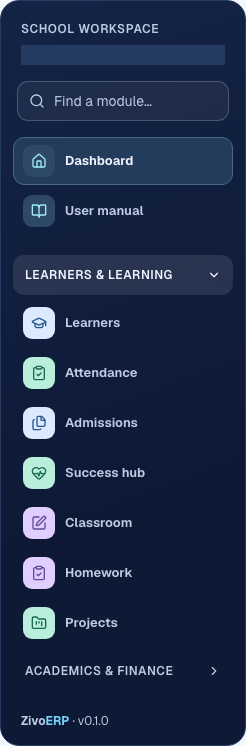
- Type part of a module name in Find a module in the left menu, or expand its category.
- Select the module. Use its tabs to switch between related tasks; on small screens, scroll the tab row sideways.
- Choose All modules for the full directory, or User manual for help. The top-bar manual link opens the current module’s guide.
What to check: You can reach every module your school and role allow.
3. Use the dashboard each morning
- Check enrolment, attendance, fees and staffing summaries.
- Read the noticeboard and upcoming school events.
- Open an item requiring follow-through, such as an operational task.
- Use the relevant module’s filtered records to investigate the summary before acting.
What to check: You have identified the records requiring attention. Dashboard totals and module totals can differ if their date or status scopes differ.
4. Set your preferences and sign out
- Use the theme control in the top bar to choose Light, Dark or Follow device.
- Open your account menu for My profile and Settings.
- Use the desktop sidebar button to hide or show the navigation; on phones use Open navigation.
- Save your work, then choose Sign out from the account menu when finished.
What to check: Your session ends when you sign out. An unsaved attendance register must be saved or discarded before navigation or school switching.
5. Send feedback about an app or manual page
- Sign in and open the page or manual chapter you want to comment on.
- Choose the floating Feedback button.
- Check the automatically captured page title and address, then enter your feedback.
- Choose Send feedback and wait for the thank-you message. If sending fails, your text remains available to retry.
What to check: Administrators receive your feedback with the page and section address. The feedback button is hidden in printed manuals.