

HR officers, school administrators and payroll approvers
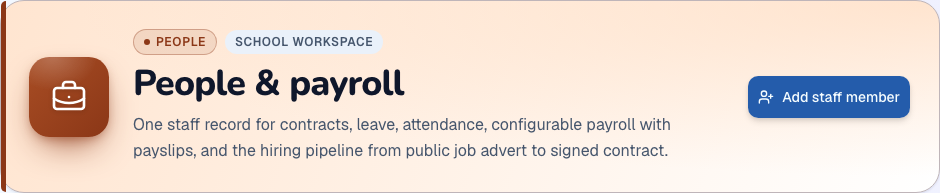
People & payroll
Before you start: Have verified staff details, contracts, leave rules and approved payroll settings ready.
Open People & payrollActions depend on your school’s enabled modules, your permissions and the record’s current status.
Find your way around
Staff directory · Leave · Attendance · Payroll · Hiring. Select these tabs inside the module; scroll the tab row sideways on a phone.
1. Create staff and contract records
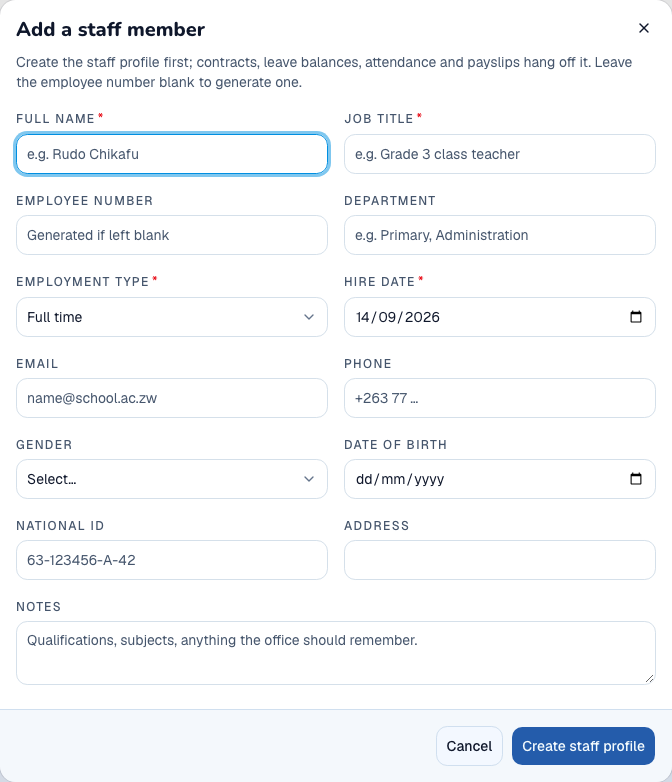
- Open Staff directory and create a staff profile.
- Enter the full name, job title, department and employment information.
- Save and open the staff record.
- Create a contract with its dates, base salary, currency and grade or scale.
- Review the active contract; renew or end it through the available workflow when employment changes.
What to check: The staff profile and contract are linked and show their intended employment status.
2. Request and approve leave
- Open Leave and review the available leave types and balances.
- Create a request for the staff member, choosing the type, first/last day and reason.
- Select Submit request.
- An authorised reviewer checks the balance and dates, then approves or rejects with the required details.
- Review the request status and balance after approval.
What to check: The decision and leave balance are recorded; an unapproved request is not approved leave.
3. Record staff attendance
- Open Attendance and select the date.
- Use the staff member’s Clock in and Clock out actions as appropriate.
- For a correction, open the time editor, enter the correct values and Save times.
- Check the record and any absence indicators for the selected day.
What to check: The day’s staff attendance shows the recorded times.
4. Calculate and approve payroll
- Open Payroll and review the configured payroll rules and active contracts.
- Create a new payroll run for the correct period and currency with Create draft run.
- Select Calculate, then inspect every payroll line, addition, deduction and total.
- An authorised approver selects Approve and confirms Approve run.
- After actual payment is made, use Mark as paid with the payment reference, then download and inspect the available payslips.
What to check: The run progresses from draft to calculated, approved and paid. Marking it paid records an event; it does not itself transfer money.
5. Recruit and convert a successful candidate
- Open Hiring and create an opening with its role details.
- Receive public applications through the school’s Careers page or Add a candidate.
- Review the pipeline and record the interview/decision stages.
- For a successful candidate, select Hired and confirm.
- Use Create staff profile, review the copied details, and verify the new colleague in Staff directory.
What to check: The successful candidate becomes a staff record without re-entering the full application.