

Admissions staff, administrators and authorised teachers
Learner information
Before you start: Have verified learner details, guardian contacts and the destination class ready.
Open Learner informationActions depend on your school’s enabled modules, your permissions and the record’s current status.
Find your way around
Learners · Families & guardians · Behaviour · Data updates. Select these tabs inside the module; scroll the tab row sideways on a phone.
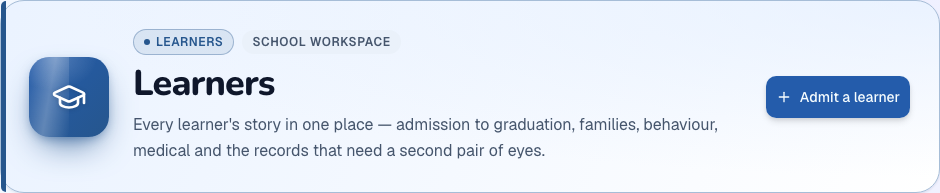
1. Admit and enrol a learner
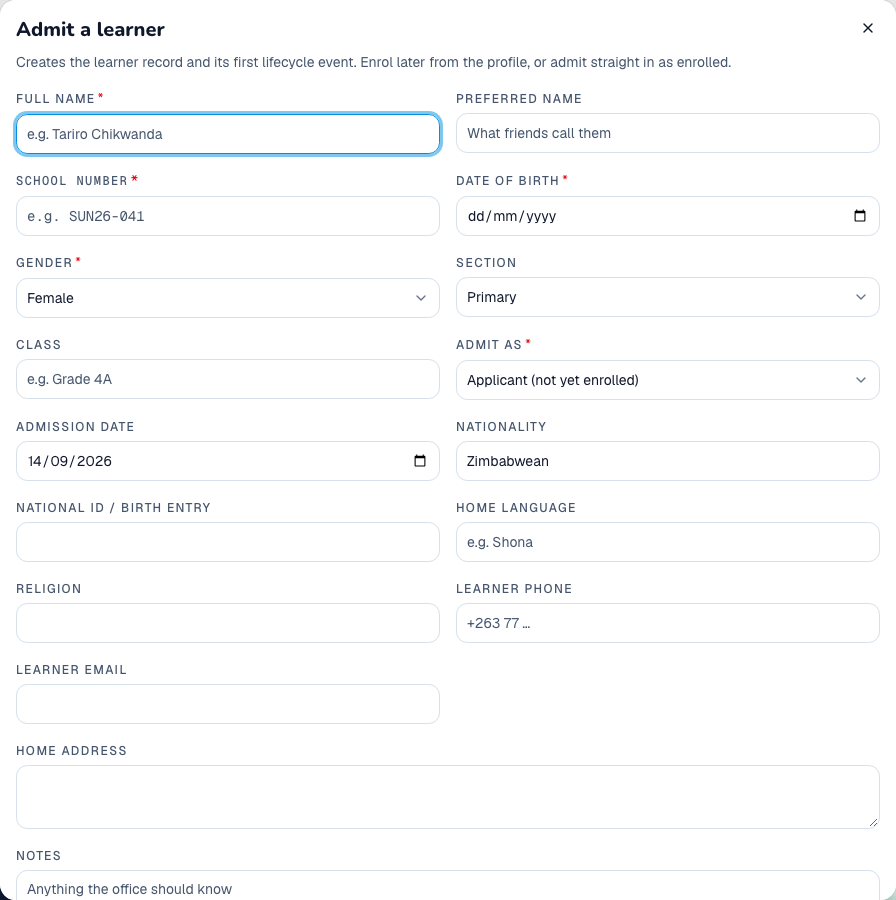
- Open Learners → Learners and choose the admit-learner action.
- Enter the learner’s identifying details, date of birth and required school information.
- Choose the admission status and save with Admit learner.
- Open the learner record and enrol the learner in the correct class when ready.
- Verify the class and status on the learner overview.
What to check: The learner has one school record and the expected class enrolment. Search before admitting to avoid duplicates.
2. Link a family and guardians
- Open Families & guardians and find the family or guardian before creating another record.
- Create or update the guardian’s name, relationship and contact details.
- Open the learner’s Guardians tab and link the correct guardian or family using the available action.
- Review the relationship and contact permissions on the learner record.
What to check: The correct adults are linked to the learner; portal account access may require additional account setup.
3. Maintain the learner profile
- Search for the learner by name or school number and open the record.
- Choose the relevant tab: Overview, Academics, Attendance, Fees, Medical, Needs, Documents, Activities or other available sections.
- Use the edit or add action only in the section you intend to change.
- Save and reopen the section to verify the result; review Timeline when you need the history.
What to check: The change is visible in the correct part of the learner’s record.
4. Record behaviour and follow-up
- Open Behaviour and add a record for the correct learner.
- Record the event, date, category, factual notes and required follow-up.
- Save the record and review the learner’s history for context.
- Complete the follow-up, recording what was done, and close it only when resolved.
What to check: The event and follow-through can be reviewed together.
5. Review family data updates and departures
- Open Data updates and review each requested correction against the existing record.
- Approve or reject using the available review action and provide the requested response.
- For a departing learner, open their record and use Transfer out with the date and destination details.
- Verify the changed status. Use Archive or Restore only when the school’s record-management process calls for it.
What to check: Requested corrections and departures have explicit outcomes without creating duplicate learner records.