

Teachers; learners and families where access is enabled
Homework
Before you start: Set up classes, rosters and subjects. Prepare instructions, due dates and any attachment before publishing.
Open HomeworkActions depend on your school’s enabled modules, your permissions and the record’s current status.
Find your way around
Assignments · Marking · Feedback & discussion · Attachments. Select these tabs inside the module; scroll the tab row sideways on a phone.
1. Create and publish an assignment
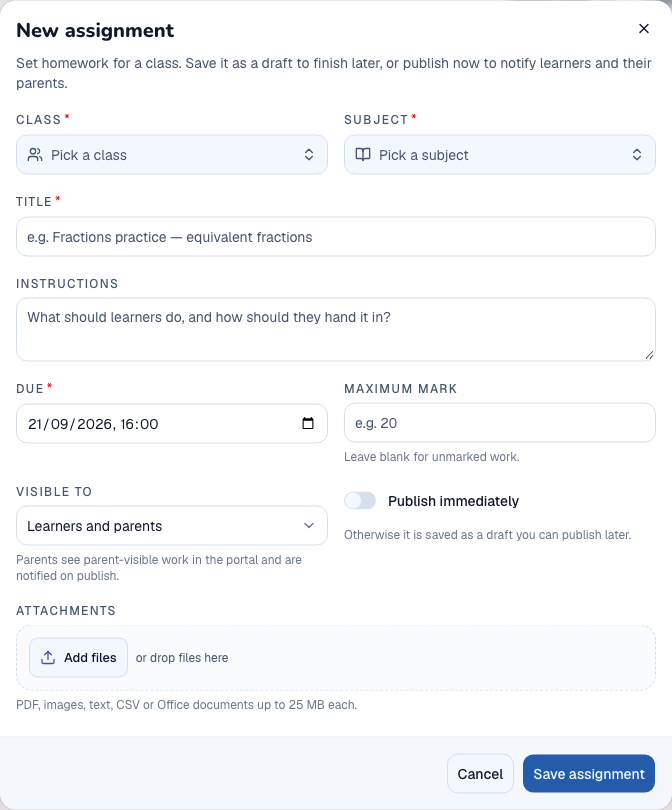
- Open Assignments and create an assignment.
- Select the class and subject; enter the title, instructions, due date and maximum mark if graded.
- Attach the relevant worksheet or resource and choose the visibility.
- Save assignment, review the draft, then select Publish and confirm.
- Verify the assignment is live and visible to the intended audience.
What to check: Learners receive the intended published assignment; a saved draft is not yet live.
2. Record hand-ins and mark work
- Open the assignment’s submissions or Marking view.
- Select Record hand-in for the learner and record the submitted time, notes or answer, and scans if needed.
- Select Record submission.
- Enter marks within the maximum and add feedback, then use the marking save action.
- Check the saved marks and outstanding submissions.
What to check: The assignment tracks both hand-ins and marking; paper work can be marked through the available marking controls.
3. Return work for resubmission
- Open the learner’s submission and choose the return action.
- Explain what needs improvement and confirm Return for resubmission.
- When the revised work arrives, use Record resubmission.
- Review the revised answer, update the mark and feedback, and save.
- Check the submission’s current state before closing the assignment.
What to check: The revised work and feedback are linked to the existing assignment.
4. Share feedback and close an assignment
- Open Feedback & discussion or the submission’s more-actions menu.
- Choose Share for feedback, select the audience and add a note.
- Review comments and replies; use Stop sharing when access should end.
- Use the assignment’s reminder action only after checking the missing-submission audience.
- Select Close assignment when the work cycle is complete; use Reopen if authorised further work is required.
What to check: Feedback access and assignment status reflect the teacher’s intended workflow.